
OAuth_Approval_Error_Generic.
Salesforce issue
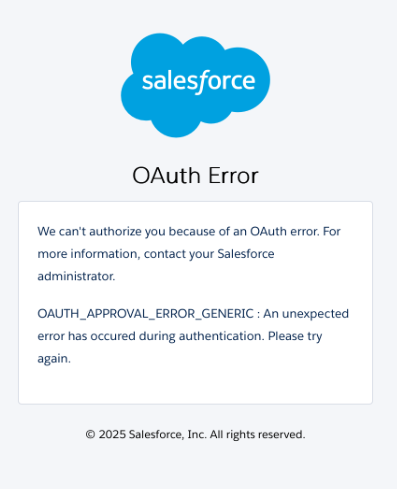
If you’re seeing the issue shown in the image below, you’re in the right place.
Follow the steps on this page to get everything working again.
Steps to Resolve the OAuth Approval Prompt Issue
1. In Setup, find and select Connected Apps OAuth Usage.
2. Review the Action column. If an app is uninstalled, the action column displays an Install button.
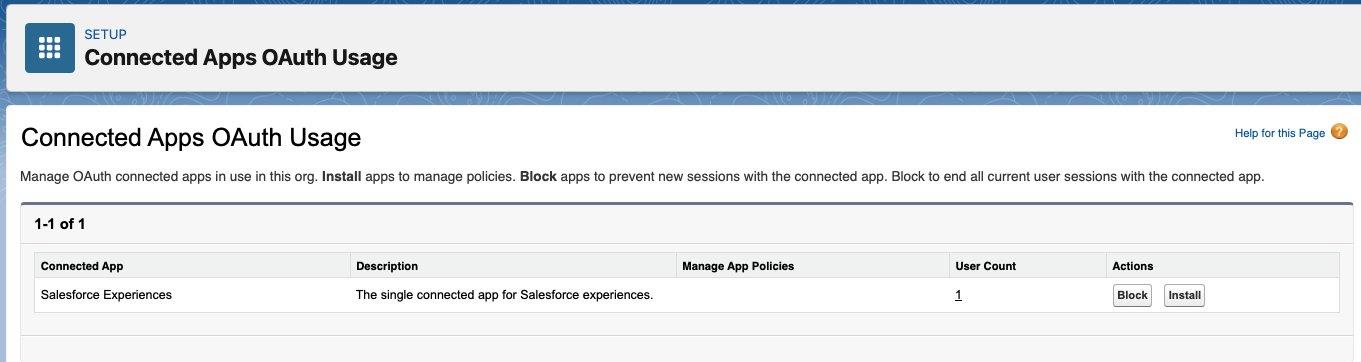
3. For each app that displays an Install button, review the app details and the User Count.
4. To see more information about which users are using an app, click the number in the User Count column. You can see which users are using the app, when they first connected, when they last used the app, and their use count.

5. Group uninstalled apps into two categories:
a. Trusted apps
b. Untrusted apps - Look for app names that you don’t recognize, and unusual usage patterns.
Install Trusted Connected Apps
1. In Setup, find and select Connected Apps OAuth Usage.
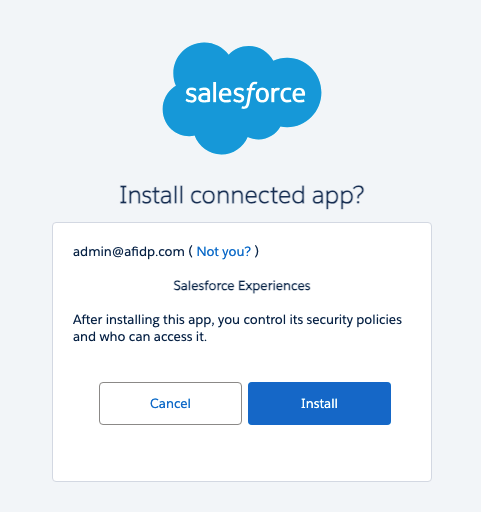
2. For each trusted app, click Install. Salesforce displays an installation page.
3. Click Install again.
Mange Access to a Connected App After Install
After a connected app is installed in your org, you can manage access to it. To configure which users can access the connected app, select a Permitted Users setting.
1. From Setup, enter Connected Apps in the Quick Find box, then select Manage Connected Apps.
2. Click Edit next to the connected app that you are configuring access for.
3. Under OAuth Policies, click the Permitted Users dropdown menu and select one of the following options.

· All users may self-authorize—Default. Allows all users in the org to authorize the app after successfully signing in. Users must approve the app the first time they access it.
· Admin approved users are pre-authorized—Allows only users with the associated profile or permission set to access the app without first authorizing it. After selecting this option, manage profiles for the app by editing each profile’s Connected App Access list. Or manage permission sets for the app by editing each permission set’s Assigned Connected App list.
· In a Group Edition org, you can’t manage individual user access with profiles. However, you can manage all users’ access when you edit a connected app’s OAuth settings.
Note: Salesforce recommends the Admin approved users are pre-authorized setting as this provides the most control over who can access the connected app by allowing the Admin to explicitly grant access through profiles and permission sets, restricting access to only authorized users.
See the help article
https://help.salesforce.com/s/articleView?id=xcloud.connected_app_manage.htm&type=5
for more information on Managing Access to a Connected App.
Block Untrusted Connected Apps
This step ensures that users can no longer access untrusted apps. Blocking an app ends all current user sessions and prevents future sessions.
1. Notify users about changes to their app access.
2. In Setup, find and select Connected Apps OAuth Usage.
3. For each untrusted app, click Block.
End User Error Message scenarios
Here are some of the error scenarios that can be encountered by users trying to access / install connected apps.
Scenario: When a user is trying to authenticate via an uninstalled connected app in an Organization where API access control Isn’t Enabled the below behavior will be observed:
If API Access control isn’t enabled, end users see the following error message in the UI if they try to access an uninstalled app: “We can’t authorize you because of an OAuth error. For more information, contact your Salesforce administrator.” and the OAUTH_APPROVAL_ERROR_GENERIC message.
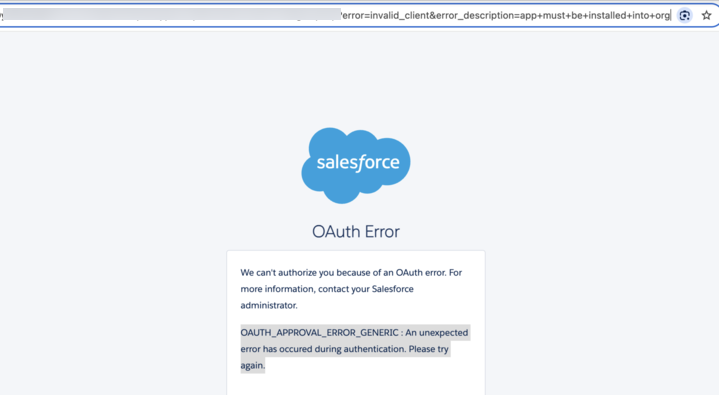
The URL describes the error in more detail using these parameters.
· error=invalid_client
· error_description=app must be installed into org
Here’s an example URL with this error.
https://example[.]com?error=invalid_client&error_description=app+must+be+installed+into+org
Scenario: When a user is trying to authenticate via an uninstalled connected app in an organization where API access control is enabled, the below behavior will be observed:
If API Access Control is enabled, end users are redirected to the Callback URL, also known as the redirect_uri configured in your connected app OAuth settings.
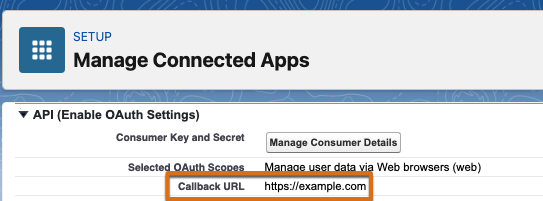
The error is reflected in the URL using these parameters.
· error=OAUTH_APP_BLOCKED
· error_description=this+app+is+blocked+by+admin
Here’s an example URL with this error.
https://example.com?error=OAUTH_APP_BLOCKED&error_description=this+app+is+blocked+by+admin
Scenario : When a user with the appropriate permissions is installing a connected app, they can see the error message "You cannot install a sandbox app outside on a non sandbox organization"
Please refer the article : Resolving "Cannot Install a Sandbox App" Error for Connected Apps for further steps for this scenario.