
Activating "On the Way" feature
Never Leave a Customer Guessing
Stay connected with homeowners leading up to the appointment with three flexible messaging options:
• On The Way Messages: Sent as soon as a user is en route.
• Automated ETA Messages: Triggered when a user’s estimated arrival reaches a specific threshold.
• Delayed Messages: Pre-written templates to notify customers if the user is running behind.

How to turn on the "On The Way" feature
- To turn on this setting you will need to go to the "App Features" section and then in"Meetings", then open the meeting that you want to have the "On the Way" feature to be turned on in. She the location for the feature below:

-
After opening the meeting type that you want add "On the Way" to you will select meeting that you want the the setting to be assigned, in this case we just have "Estimate" so we will click the Pencil:
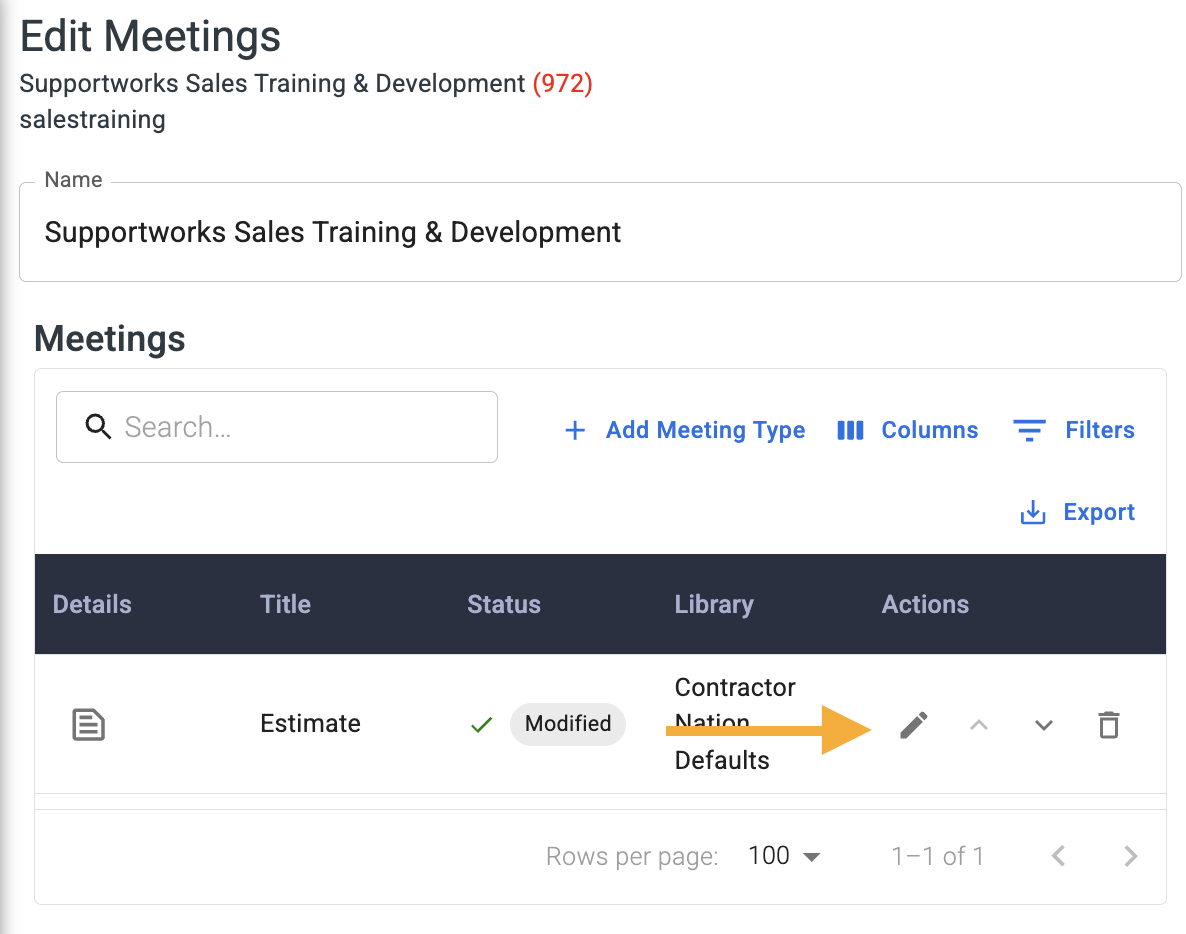
-
Check the box by "Pre-Appointment" and then you will be able to customize your message for what you would like the "On the Way" to relay to your customer.
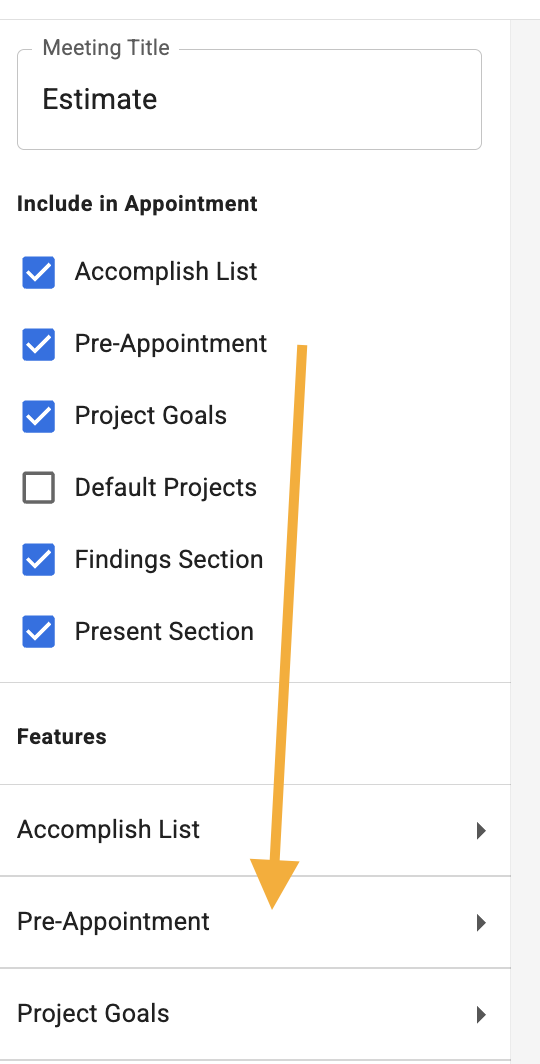
After that is clicked the following items will now be present that you can modify if you so choose:

When expanded it would look like the following:

Keep the " $ " Tags Intact:
The words starting with $ are Smart Tags that automatically pull in your customer’s name and arrival time. If you delete the $ symbol, the system won't know what info to fill in.
Example of how it would look from the Sales rep and Customer:
