
Free up Device Space in SolutionView by clearing out older appointments
We have introduced a feature in SolutionView designed to help you free up device storage by clearing out older, locally stored data. Following these steps ensures your device stays fast while your important documents remain safely backed up in the cloud.
1. Check Your Current Storage
Before clearing any data, it is helpful to know your starting point:
- Open iPad Settings.
- Navigate to General > iPad Storage.
- Locate SolutionView in the list and note the current "Documents & Data" size.

2. Sync Your Data (Required)
To prevent data loss, ensure all recent appointments and files are uploaded to our servers before proceeding.
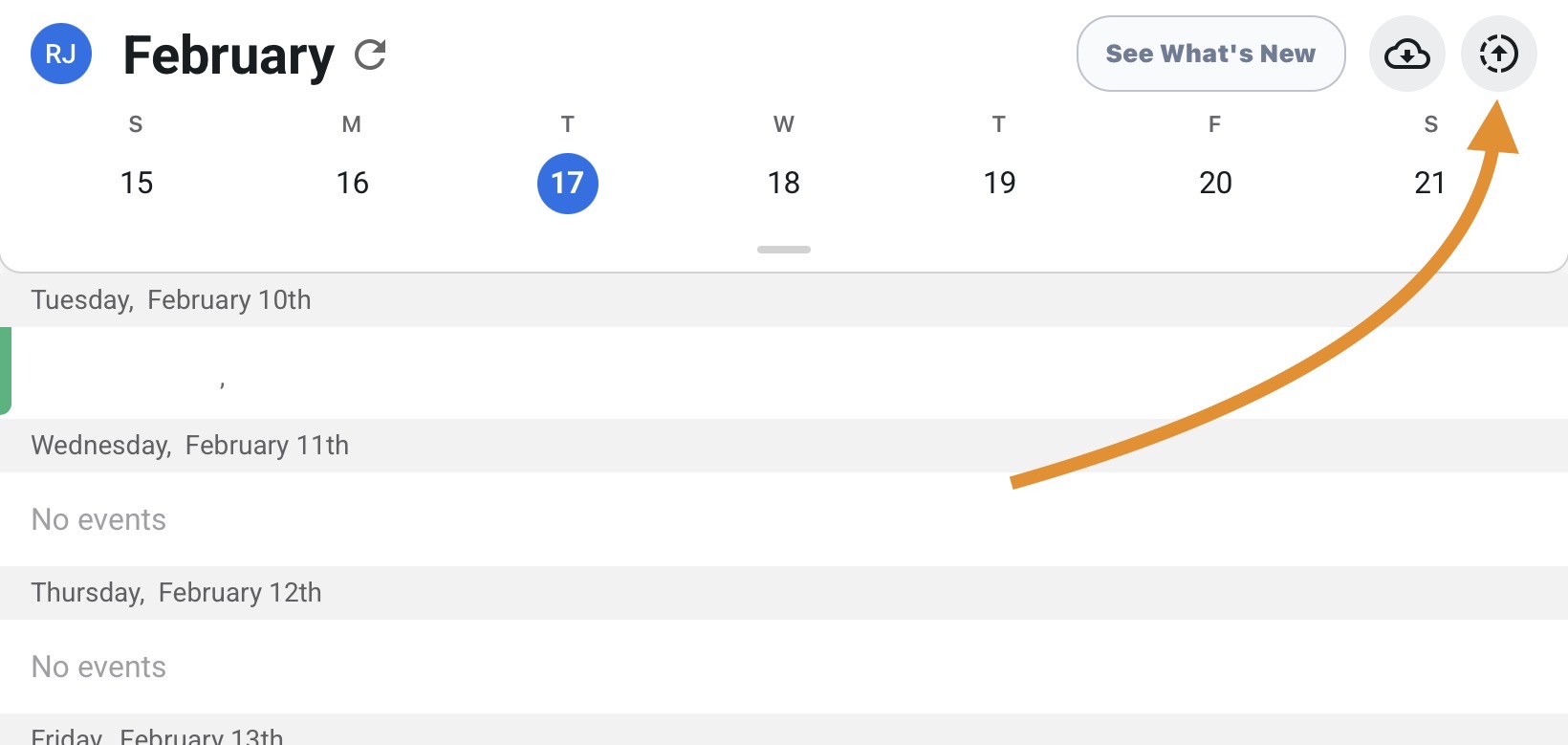
- Open the SolutionView app and go to the Calendar page.
- Tap the Sync icon (circle with the upward arrow).
- Important: Stay connected to a stable Wi-Fi or cellular signal until the sync is complete.
3. Clear Local Data
Once your data is synced, you can safely remove older files from your device.
- Navigate to the Main Menu in SolutionView.
-
Tap Clear Data (found in red text at the bottom right).
Configure your preferences:
- Number of Weeks: Choose how far back you want the app to clear. For example, selecting "4 weeks" will keep the last month of data on your device while clearing everything older.
- Only Sent Proposals: Toggle this ON if you only want to clear appointments that have a finished proposal. Toggle it OFF to clear all appointments within the selected timeframe.

4.Configure your preferences:
- Number of Weeks: Choose how far back you want the app to clear. For example, selecting "4 weeks" will keep the last month of data on your device while clearing everything older.
- Only Sent Proposals: Toggle this ON if you only want to clear appointments that have a finished proposal. Toggle it OFF to clear all appointments within the selected timeframe.

5. Verification
To confirm the process was successful:
- Return to iPad Settings > General > iPad Storage.
- The "Documents & Data" for SolutionView should now show a reduced size, confirming that storage space has been recovered.
Note:
Clearing local data will not delete it from the cloud. You can still access older records by using the search function or re-syncing historical data as needed. To ensure your files are safe, it is critical to complete the sync process described in Step 2 before proceeding clearing data from your device does not delete it from the cloud. You can still access older records by searching for them or re-syncing specific historical data if needed. It is crucial to sync all data as mentioned in step to ensure all is backed up for this process.