
Logging in and Logging out of SolutionView App
Note: If you are a part of the Supportworks or Basement Systems Network, you will need to wait until implementation from the SolutionView team is complete before logging into SolutionView with your company credentials.
Logging in Step-by-Step
- Open SolutionView
- In workspace, type your 'Workspace' id. Your workspace id was created during the sign-up process. If you don't know your workspace id, please email support@solutionview.com.

- Press “Enter Workspace & Continue”
- If you do not use a CRM to authenticate, input your email and password and sign In
- If you do use a CRM to authenticate, press the blue button that reads, "Sign in with..."
- Follow the remaining prompts if you are using the CRM to authenticate
- When you return to SolutionView, press “Login to SolutionView”

- You will be signed into SolutionView
Error
If the following error occurs:
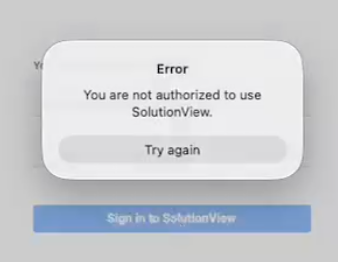
Things to Check
Before contacting support, please verify the following:
-
CRM Integration: Ensure the user is fully set up and active within your CRM (if applicable).
SolutionView Permissions: Verify that the correct access levels are assigned in the Admin.
https://help.solutionview.app/article/162-adding-permissions-for-new-users
- Action: Follow our to audit user roles.
Still need help? If these steps don't resolve the issue, contact our team at .
After Login
Logging out of SolutionView Step-by-Step
- Open SolutionView
- At the bottom on the calendar page, you will click the "Menu" at the bottom right

Next when on the Menu page after it opens you will be able to log out of SolutionView as seen below:

🚫 Please Don’t Delete the SolutionView App
If you’re having trouble with the app, don’t delete SolutionView — doing so will remove any unsaved project files, and unfortunately, they can’t be recovered.
Instead, try these quick fixes:
- Log out of SolutionView, then log back in.
- Make sure you’re running the latest version of the app.
- Still having issues? Reach out to our support team at support@solutionview.com — we’re happy to help!